Reviewed September 24, 2026. Features depend on your enabled modules, permissions, and configured integrations.
Getting in
Use the browser app at /canvasser/ on your campaign’s domain, or the dedicated canvasser address your organizer supplies. It can be added to your home screen. Native iPhone and Android builds also exist; ask your organizer for the distribution link available to your campaign.
Sign in with the email and password your campaign set up for you. If two-factor is on, a six-digit code from your authenticator app (or a backup code) follows. You'll be asked to change the password on your first sign-in, and Forgot password? emails you a reset link. If you work for more than one campaign, pick the one you're walking for. Canvasser sign-in is separate from the NJR account your campaign's staff use. Download the assigned turf while connected. Location permission enables your position on the map and location reporting to HQ. If it is denied, the app shows a recovery prompt; the downloaded door list is still useful.
The main screen
The bottom navigation has Today, Doors, Map, and Inbox. Assigned captains also get Turf, between Map and Inbox:
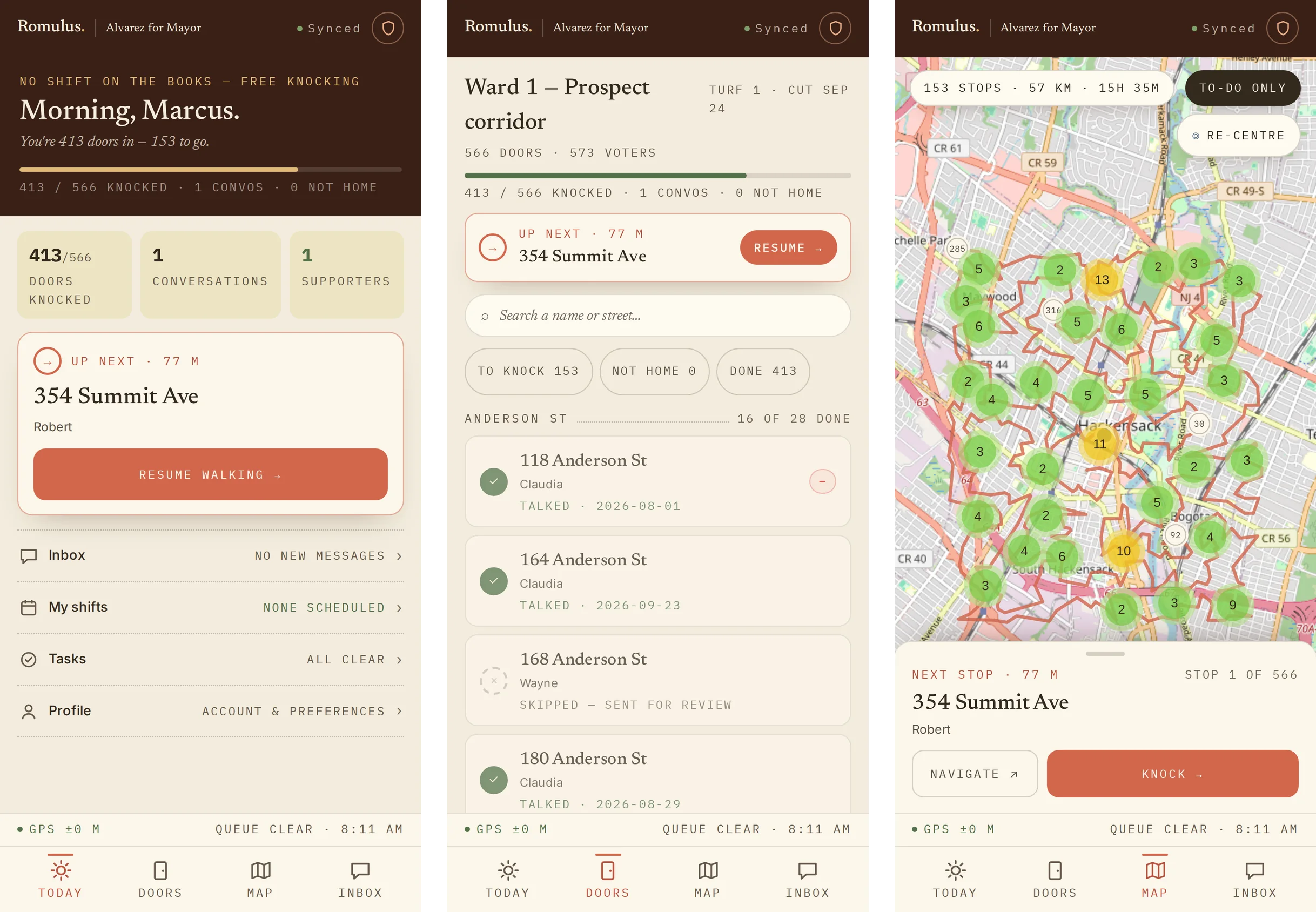
A few things are intentionally hidden: other turfs, other canvassers' data, and voter notes from other canvassers. Staff at HQ see the aggregate; you see your own work. Your GPS position reports every 15–30 seconds while the app is open, a "tracking active" indicator shows when location is shared, and pings are deleted after 60 days.
Doors, households & buildings
Your list isn't a flat run of names. It's organized the way a street actually is. Individual voters group into households (same address, apartment, and city), and households group into doors, or buildings (same building). Most of the time a door is one household and you knock it once. A multi-unit building shows as a single row that opens to a stack of units, so a 40-unit apartment block is one line on your list, not forty.
That structure saves you taps at exactly the moments a flat list wouldn't. Marking "can't access lobby" on a building cascades an Inaccessible outcome to every unit inside it in one action, with no walking a whole stack to record doors you never actually reached. And every door wears a status glyph that means the same thing everywhere in the app:
What you actually see at each door depends on the turf's canvass mode (standard door-knock, lit drop, ID, or interview), chosen by HQ when they cut the turf. A lit-drop turf keeps it quick; an interview turf leads with the longer questionnaire. You don't pick it; you just get the layout that fits the work.
A typical shift
- At the meet location, listen for the captain's brief, then tap Start shift.
- Walk to the first household on the route and tap it. You'll see each voter's name, age, party, and previous contact.
- If someone answers: read the script, tap answers as the voter responds (branching skips irrelevant follow-ups), pick the outcome (spoken to, supportive, opposed, undecided, refused), add notes, and save. The app auto-advances to the next household.
- If nobody answers: tap Not home once at the household level. It marks every voter at the address in one tap.
- If the address is wrong or they moved: pick Moved, Deceased, or Wrong address so the campaign can clean the data.
Two things are worth knowing at the door. Scripts can flip between English and the voter's own language when one's on file. The wording changes, but the answer values underneath don't, so a response logs identically whichever language you read it in. And every quick log drops an 8-second undo toast: tap it and, if the row is still waiting to sync, it's simply thrown away; if it already went up, it's reversed: a delete limited to your own contact, inside about a fifteen-minute window, that honestly recomputes the voter's status rather than pretending the knock never happened.
Messages from HQ arrive as a slim banner under the header (a nudge, never a screen takeover) unless an organizer flags one urgent; acknowledging one is just the read receipt back. At the end of the shift, review your Wrap-up, brief the captain, and log out. That closes your session and stops GPS pings. Within minutes your contacts are on voter profiles and your session is on the leaderboard.
Offline behavior
Lose signal and the app keeps working: your downloaded turf and voter list remain available; map tiles depend on what has already loaded, new contact logs and script responses queue locally, and queued work retries when connectivity returns; check the sync queue for anything still pending.
The header carries a small sync pip that tells you exactly where you stand: SYNCED when everything's up, SYNCING n while it catches up, OFFLINE·n with a count of what's still waiting. Tapping it opens a sheet listing the actual rows in the queue. A GPS strip just above the bottom dock is the only other ambient status; the app won't pop a toast at you every time a bar of signal comes and goes. Photos are shrunk on your phone before they upload (around 700 KB at 1280 pixels), so a door photo still goes through on one weak bar.
The native app
The Expo/React Native app targets iPhone and Android and shares the web app’s field workflow: Today, Doors, Map, Inbox, offline work, and captain tools. Native builds use a securely stored device token for authentication.
Distribution depends on the campaign’s release channel. The existence of native code does not establish public App Store availability; use the install link from your organizer or the browser version.
The safety shield remains in the header. Confirm that queued work has synced before ending your session or clearing app data. The app helps: signing out with door logs still waiting warns you that signing out deletes them and offers to stay signed in and sync, and deleting a row from the sync queue takes a second tap to confirm. Repeated delivery of the same queued contact is deduplicated so reconnection does not count a knock twice.